
Remote access: see and control your screens from anywhere
With PlayTVi you already manage your schedule and administer all your screens from the dashboard. Now you also access and configure each device remotely: the screen appears live on your computer and you tap, use the arrow keys and type as if you were standing in front of it.
Already a customer? Install the app with Remote Access on your screens and see how to enable it on each device.
the device screen in your browser, in seconds
tap, drag, arrow keys, back, home and PC keyboard
one-time setup on the device — after that, just click
no AnyDesk or TeamViewer: it's built into PlayTVi
Manage, administer and now access
Until now, when a screen needed an adjustment on the device itself — volume, date and time, an open system window, a new app — someone had to go on site or get help over the phone. Now you fix it from the office, from home, or from a laptop on the go.
What plays on each screen
Send videos, images and ready-made content, build schedules by day and time, create layouts and screen groups — all from the dashboard.
The health of every screen
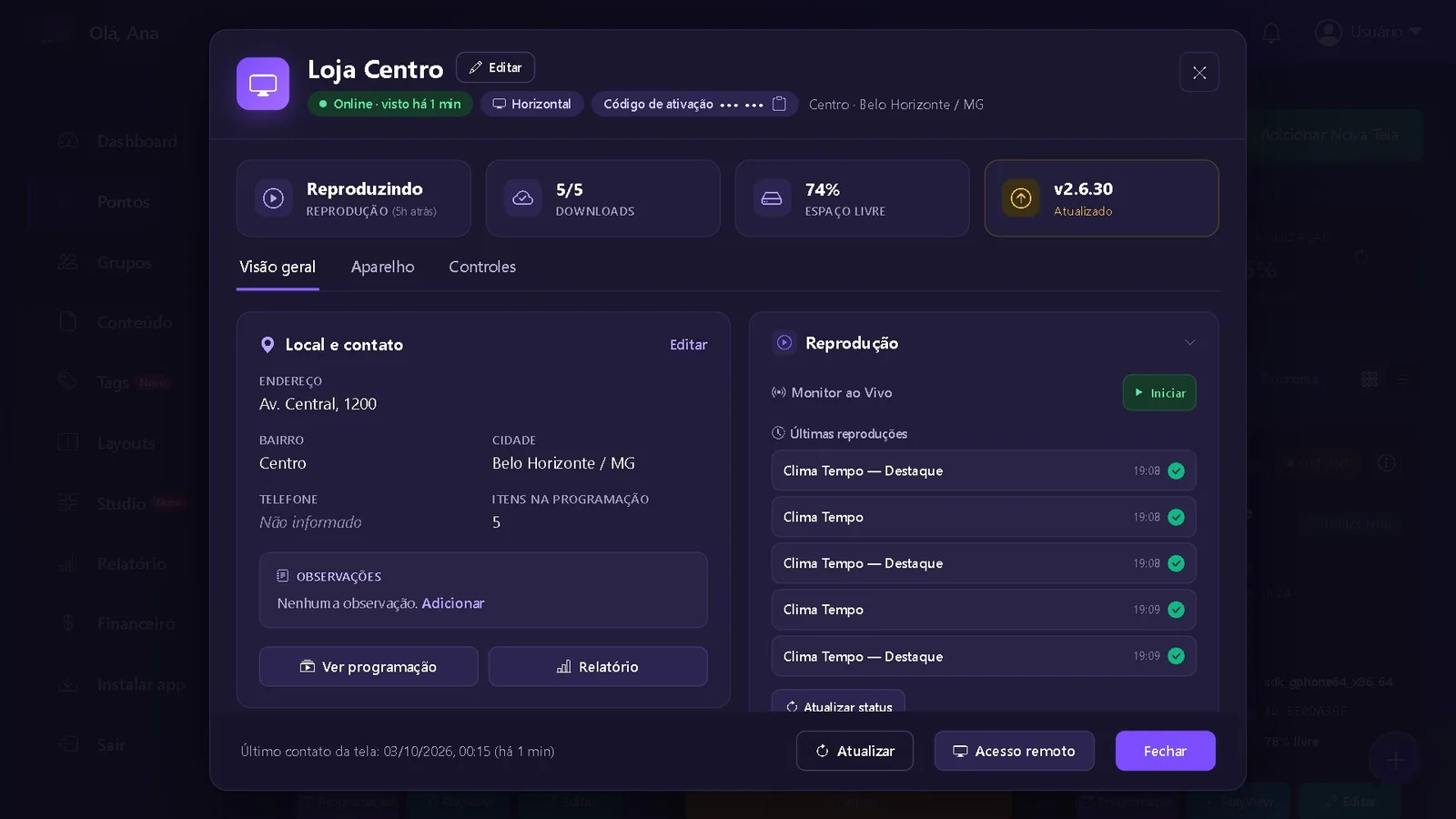
See which screens are online, what played, downloads, free space and app version. Update, restart and get alerts without leaving your seat.
The device itself, remotely
Open the live screen and work on the TV box, Android TV, tablet or display as if you had the remote control in your hand.
See remote access in action
In a minute and a half: from the dashboard to the live screen, touch, adjustments, diagnostics and app installation — all remotely.
Everything you do in front of the screen, now from the dashboard
Remote access was built for the day-to-day of people who look after digital signage screens: quick to open, light on the location's internet and complete enough to really solve problems.
Live screen
See exactly what is playing on the device, in real time, with quality adjusted to the location's internet.
Tap, drag and hold
Click the image and the device receives the tap at the same point. Drag to scroll lists, hold for a long press.
Virtual remote control
Arrows, OK, Back, Home, Apps, Menu, Play/Pause and volume — ideal for TV boxes and Android TV, which are operated with a remote.
Computer keyboard
Type passwords, addresses and searches right into the device's field, with accents, ç, numbers and symbols.
Android settings
Enter the device's settings to fix date and time, sound, display, network and apps. The player waits for you to finish.
Install and update
Watch the PlayTVi update on the screen itself and confirm installations without asking anyone on site for help.
Diagnostics alongside
Model, Android version, app version, resolution and recent screen events, all in the same access window.
Screenshot
Save an image of what is playing to check a campaign or show your customer that their ad is live.
Reconnects automatically
If the device restarts during access, it returns to the same session on its own. When you end the session, the schedule resumes.
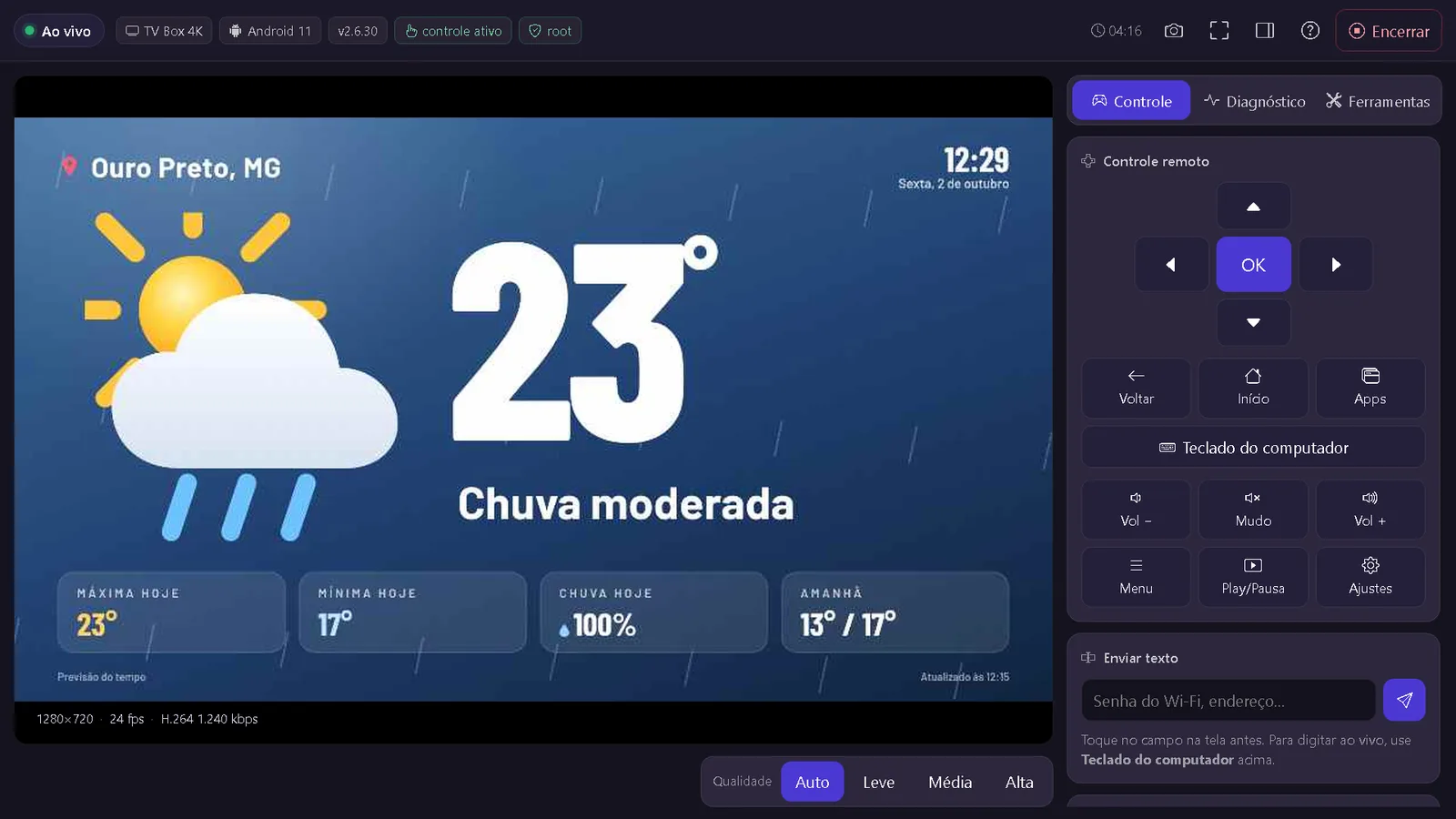
One window, everything you need
Remote access opens inside the dashboard itself, with nothing to download on your computer. It works in Chrome, Edge and current browsers.
- Badges at the top show the device, the Android version and whether control is active.
- Control, Diagnostics and Tools tabs for each type of task.
- Auto, Low, Medium or High quality — the image adapts to the location's internet.
- Full screen to work with a large image, and End returns the screen to the schedule.
From the dashboard to the live screen in 3 clicks
Once it's enabled on the device (one time only, see the guide below), it's always like this:
Open the screen under Screens
In the dashboard, go to Screens and click the icon (i) on the screen you want to access.
Click Remote access
The button is at the bottom of the screen info window. The connection opens right away.
See and control
The screen appears live. Use the mouse, the virtual remote and the keyboard. When you're done, click End.
What you need
- PlayTVi App with Remote Access on the device: download at connect.playtvi.com.br/apk/#remoto and install it over PlayTVi (pairing is kept).
- Android 6 or higher device — TV box, Android TV, Google TV, tablet, phone or Android display.
- Device on and online: access uses the device's own connection.
- Remote control enabled once in Android Accessibility (or automatic on rooted / ADB-enabled devices).
How to enable remote access on your device
Choose your device type. The animation shows each screen along the way; click a step in the list to jump straight to it. Menu names may vary slightly from manufacturer to manufacturer, but the path is the same.
TV box with Android 7 to 12
Rockchip, Amlogic, Allwinner and similar (MXQ, TX, H96, MCD and others). Done with the device's remote control.
- On the TV box home screen, open Settings (gear icon).
- Scroll down to Accessibility and press OK. On some models it's under More settings or Advanced.
- Under Services, choose PlayTVi - remote control.
- Turn on the option Use service.
- Confirm with OK. You only need to do this once.
- Go back to PlayTVi with the button Home. The schedule continues as normal.
- In the dashboard: Screens → (i) → Remote access.
- Done: the screen appears live and control is active.
Android TV and Google TV
TVs and devices with Google's TV system (TCL, Philips, Sony, Xiaomi Mi Box/TV Stick, Chromecast with Google TV and others).
- At the top of the home screen, open the gear (Settings).
- Go to System (Google TV) or Device Preferences (Android TV).
- Open Accessibility.
- In services, choose PlayTVi - remote control.
- Turn on the option and confirm with OK.
- Go back to PlayTVi and open access from the dashboard.
Tablet, phone and touch display with Android 13, 14, 15 and 16
From Android 13, apps installed via APK need an extra permission before enabling accessibility. It takes 2 minutes, one time only. On Android 7 to 12, skip steps 3 to 5.
- Open Settings → Accessibility.
- Under Downloaded apps (or Installed services), tap PlayTVi - remote control.
- When you turn it on, Android warns you “Restricted setting”. Tap OK.
- Go to Settings → Apps → PlayTVi and tap the menu ⋮ in the top corner.
- Tap Allow restricted settings and confirm with the device PIN or pattern.
- Go back to Accessibility, turn on PlayTVi - remote control and tap Allow.
- On Android 14 and higher, the device asks to start casting on every access — PlayTVi confirms it automatically.
- Open access from the dashboard and control everything with the mouse.
Installers and fleets: automatic enablement
For those who prepare many devices. With one permission granted at install time, PlayTVi turns control on by itself at the start of each access and turns it off when it ends — with no one touching the device.
- On the TV box, turn on USB debugging / ADB in Developer options (many TV boxes already come with network ADB on).
- On the computer, connect:
adb connect IP-DO-APARELHO - Install or update the app:
adb install -r PlayTVi-AcessoRemoto.apk - Grant the permission:
adb shell pm grant com.playtv.player android.permission.WRITE_SECURE_SETTINGS - Done. From now on, remote access turns control on by itself, even after app updates.
Which Android versions and devices work
Remote access is in the PlayTVi app with Remote Access, for Android. See what each Android version allows.
| Android | Live screen | Control | Enabling on the device |
|---|---|---|---|
| Android 5 or earlier | — | — | The PlayTVi app requires Android 6 or higher. For these devices, the way forward is a new TV box. |
| Android 6.0 | ✓ Yes | ● Clicks and arrow keys | Accessibility, once. Drag and long press depend on Android 7. |
| Android 7 · 7.1 | ✓ Yes | ✓ Full | Accessibility, once. Most common version on TV boxes. |
| Android 8 · 9 | ✓ Yes | ✓ Full | Accessibility, once. |
| Android 10 · 11 · 12 | ✓ Yes | ✓ Full | Accessibility, once. |
| Android 13 | ✓ Yes | ✓ Full | “Allow restricted settings” + Accessibility, once. |
| Android 14 · 15 · 16 | ✓ Yes | ✓ Full | Same as 13. The cast confirmation on each access is handled by the app itself. |
| With root or ADB | ✓ Yes | ✓ Full | None: the app enables itself every session. |
Android TV Box
CompatibleThe most widely used device in digital signage. Control with arrow keys and by tapping the image.
Android TV and Google TV
CompatibleTVs with Google's system and sticks like Mi TV Stick and Chromecast with Google TV.
Android displays and kiosks
CompatibleProfessional displays and touch kiosks with embedded Android.
Tablets and phones
CompatibleTablets at counters, reception desks or on app carts. Touch control, just like holding the device.
Windows player
Not yetRemote access is, for now, an Android app feature. Windows screens keep all the other dashboard features.
Smart TV without Android
Use a TV boxTVs with Tizen (Samsung) or webOS (LG): plug an Android TV box into the HDMI port and get full remote access.
Tested by the PlayTVi team before launch
- TV box MCD-121 (Rockchip), Tomate launcher — arrow-key navigation, touch, drag, keyboard and automatic return to the schedule.
- Positivo Vaio TL10 tablet with Android 13 — restricted settings enablement, touch and typing.
- Google reference device with Android 14 — automatic cast confirmation, reconnection and several technicians viewing the same screen.
Remote support without the hassle
Many digital signage companies install a separate remote access program on every TV box. It works, but it's a lot of effort and leaves passwords scattered around.
The old way
- Going on site or talking someone through it by phone, button by button
- Installing AnyDesk, TeamViewer or similar on every device
- Writing down each screen's ID and password in a spreadsheet
- Extra software asking for updates and licenses
- No record of who accessed each device
With PlayTVi
- One button on the right screen, inside the dashboard you already use
- Nothing extra to install: it's built into the PlayTVi app
- No IDs or passwords to keep: your dashboard login is enough
- Diagnostics and control in the same window
- Every access logged with who opened it and when
What you fix without leaving your seat
Wrong date and time
Turn on automatic time so time-based schedules run right.
Volume and sound
Adjust the device volume with the Vol −, Vol + and Mute buttons.
System window in front
Close Android alerts and windows that ended up on top of the schedule.
App update
Confirm the installation of the new PlayTVi version right on the screen.
Switching Wi-Fi networks
Is the customer changing internet providers? Connect the new network ahead of time, typing the password from your PC.
Resolution and display
Adjust the TV box's output resolution and the TV's display mode.
Check a campaign
See with your own eyes that your customer's ad is live, and save a screenshot.
Resellers and agencies
Serve dozens of locations spread across the city or the country with the same team.
Access only for the owner of the screen
Remote control only works when a session is opened from your account's dashboard. Otherwise, the device just keeps playing the schedule.
Dashboard login only
No one accesses a device without being logged in to the account that owns that screen.
Temporary key
Each session uses an encrypted key that is valid for a few seconds and cannot be reused.
Everything logged
Each access is recorded with who opened it, on which screen and for how long.
PlayTVi servers
The connection goes through PlayTVi's own infrastructure, with no remote access companies in the middle.
Protected content stays black
Banking and streaming apps that block capture remain protected by Android itself.
Ends when you close it
Close the window and the session ends on the device and the schedule resumes on its own.
Remote access questions
“The app was blocked to protect your device” appeared. Now what?
It's Google Play Protect, which blocks apps installed from outside the store that request Accessibility. Turn off Play Protect scanning and install again. See the step-by-step guide for each device.
What is PlayTVi remote access?
It is a feature of the PlayTVi app that shows, live in the dashboard, the screen of the device where the app is installed and lets you control that device with your computer's mouse and keyboard: tap, drag, use the arrow keys, go back, open settings and type.
Do I need to install AnyDesk or TeamViewer on the TV box?
No. Remote access is built into the PlayTVi app and opens straight from the dashboard, in your browser. You don't need to install another program or write down codes and passwords for each device.
Which Android versions work?
Android 6 and up. On Android 7 through 16 the control is complete (tap, drag, arrow keys, keyboard). On Android 6 the live image works and control is done with clicks and arrow keys. See the compatibility table.
Which devices are compatible?
Android TV boxes (Rockchip, Amlogic, Allwinner and others), Android TV and Google TV, professional Android displays and kiosks, Android tablets and phones. The Windows player does not have remote access yet.
Does the device need to be on and online?
Yes. Remote access connects through the device's own internet, so it must be on, connected, and have the PlayTVi app open or in the background.
Do I need to set anything up on the device?
Just once: turn on “PlayTVi - controle à distância” in Android Accessibility. On a rooted TV box, or one enabled via ADB by the installer, not even that: the app turns on control by itself every session. See the animated guide by device.
Is remote access secure?
Only people with a login to your dashboard account can open a session. Each session uses a temporary key, is logged with who accessed and when, and ends when the window is closed. Protected screens from other apps, such as banking and streaming, appear black.
Does the schedule stop while I'm connected?
You see the screen exactly as it is. If you want to leave PlayTVi to change settings, the app waits for you to finish; when you end the session, the schedule resumes on its own.
Does it use a lot of internet?
No. The image is sent as compressed video and the quality adjusts automatically to the location's internet. With a still screen, usage is minimal. You can also choose Low, Medium or High.
Is the TV's sound transmitted too?
No, remote access transmits the image only. You can adjust the device volume with the Vol −, Vol + and Mute buttons in the dashboard.
Manage, administer and access your screens from anywhere
Try PlayTVi free for 7 days, no credit card. Already a customer? Install the app with Remote Access on your screens and try it today.