
Getting started
PlayTVi turns any TV into a communication channel: you build your content here in the dashboard, from your computer or phone, and your screens update on their own over the internet. No need to touch the TV once it's installed.
What you need before you start
| Item | Details |
|---|---|
| A TV or monitor | Any TV with an HDMI input works. Smart TVs too. |
| An Android device | A TV box, dongle, Android TV or even a tablet. This is where the PlayTVi app runs. |
| Internet at the location | Wi-Fi or cable. Content is downloaded once and saved on the device — if the internet goes down, the screen keeps playing. |
| A dashboard account | Created at connect.playtvi.com.br, with a 7-day free trial, no credit card. |
There's also a player for Windows, useful when the screen is connected to a PC that's already on site. It works the same way in the dashboard.
The full path, in four moves
-
Register the screen in the dashboard
Each screen is a "location." When you create the location, the dashboard generates a 6-digit code.
-
Install the app and enter the code
On the device connected to the TV. This is what links the TV to your account — it's called pairing.
-
Upload your content
Videos and images go to the Media Library. You can also create designs in Studio, without leaving the dashboard.
-
Build the schedule
Choose what plays, in what order and at what times. Save it, and the screen receives it on its own.
Getting to know the dashboard
When you log in you land on the Dashboard. The menu on the left is the same on every screen of the system:
| Menu | What it's for |
|---|---|
| Dashboard | Summary: online and offline screens, alerts, storage, due date and content counters. |
| Screens | Your screens. From here you schedule, edit, peek live and diagnose each one. |
| Groups | Schedule several screens at once with the same content. |
| Content | Media library: upload videos and images, folders and storage. |
| Layouts | Split the screen into zones (video + news + logo, for example) and build video walls. |
| Studio | Create ready-to-play designs right in the dashboard. |
| Report | How many times each piece of content played and how long each screen was online. |
| Billing | Plan, billed screens, payment method and history. |
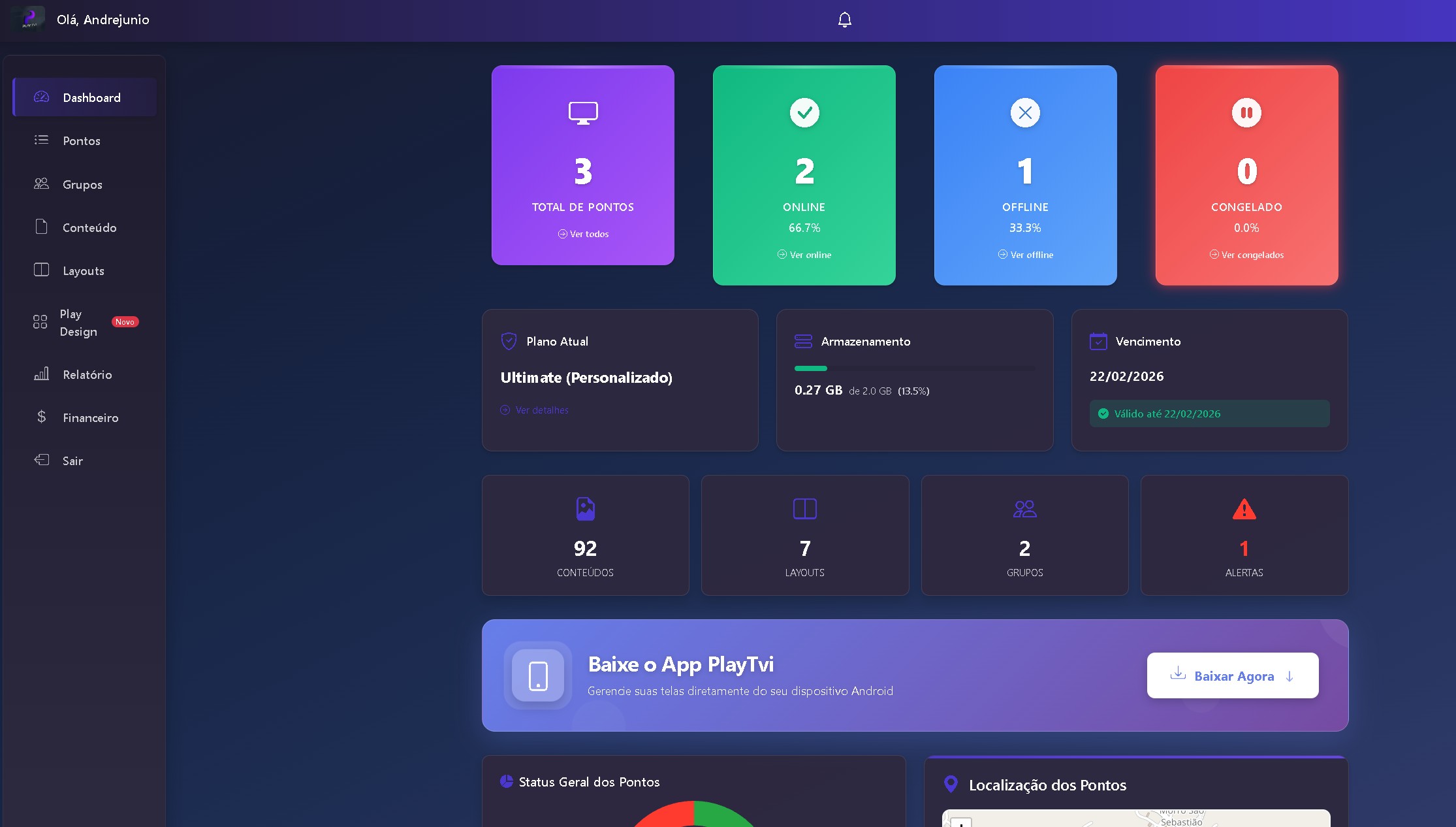
The bell in the top right corner collects system notices (screen down, payment, news). The User menu next to it gives access to My Account, password change and brand settings.
Install the app and pair your first screen
Pairing is the handshake between the TV and your account. In PlayTVi it starts in the dashboard: first you create the location, then you enter on the device the code the dashboard showed.
-
Create the location
Go to Screens and click Add New Screen. Fill in:
- Location Name (required) — use something you'll recognize in the list later: "Downtown Store — Window" is better than "Screen 1."
- Address, Neighborhood, City, State, Phone — city and state are required and appear on the screen card, which helps when you have many locations.
- Screen Format — Horizontal (1280×720), Vertical Right or Vertical Left (720×1280). "Right" and "Left" indicate which way the TV was rotated.
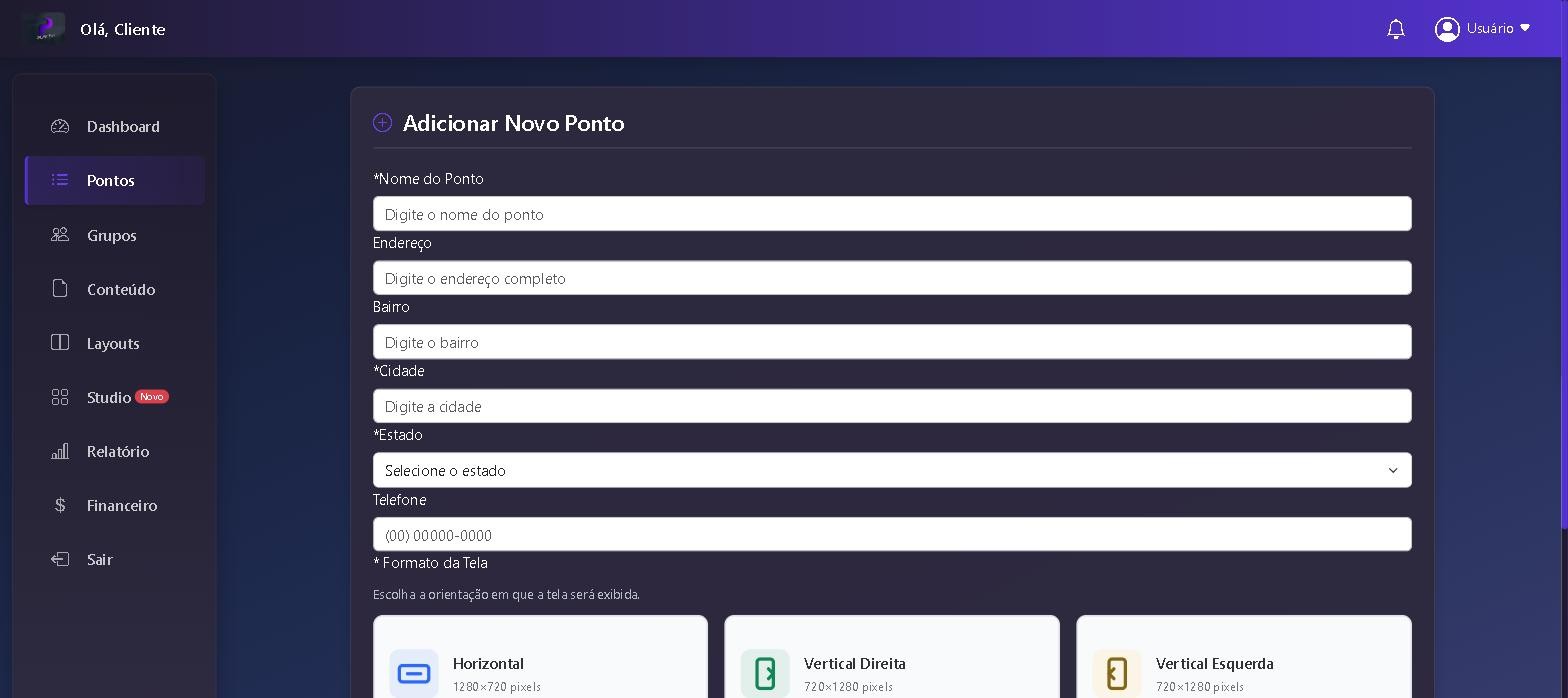
The format sets the content resolution. Choose it before building the schedule. -
Write down the 6-digit code
Once the location is saved, it appears in the list with a code at the top of the card and the notice Screen not yet set up - Waiting for pairing. There's a copy button next to the code.
-
Install the app on the device
Download the APK at connect.playtvi.com.br/apk and install it on the TV box or Android TV. Since it doesn't come from the store, Android asks you to allow installs from unknown sources — that's normal.
-
Enter the code on the TV
Open the app: it asks for the activation code. Enter the 6 digits. Within seconds the card in the dashboard changes from Waiting for pairing to ONLINE and starts downloading whatever is scheduled.
Keep the device plugged in, with power saving off. The app needs to start together with the device — if someone turns it off at the power strip every day, the screen will show as offline in the dashboard.
Rotated the TV to vertical after pairing? Edit the location and change the format. The app reconfigures itself, no need to pair again.
Media library: upload videos and images
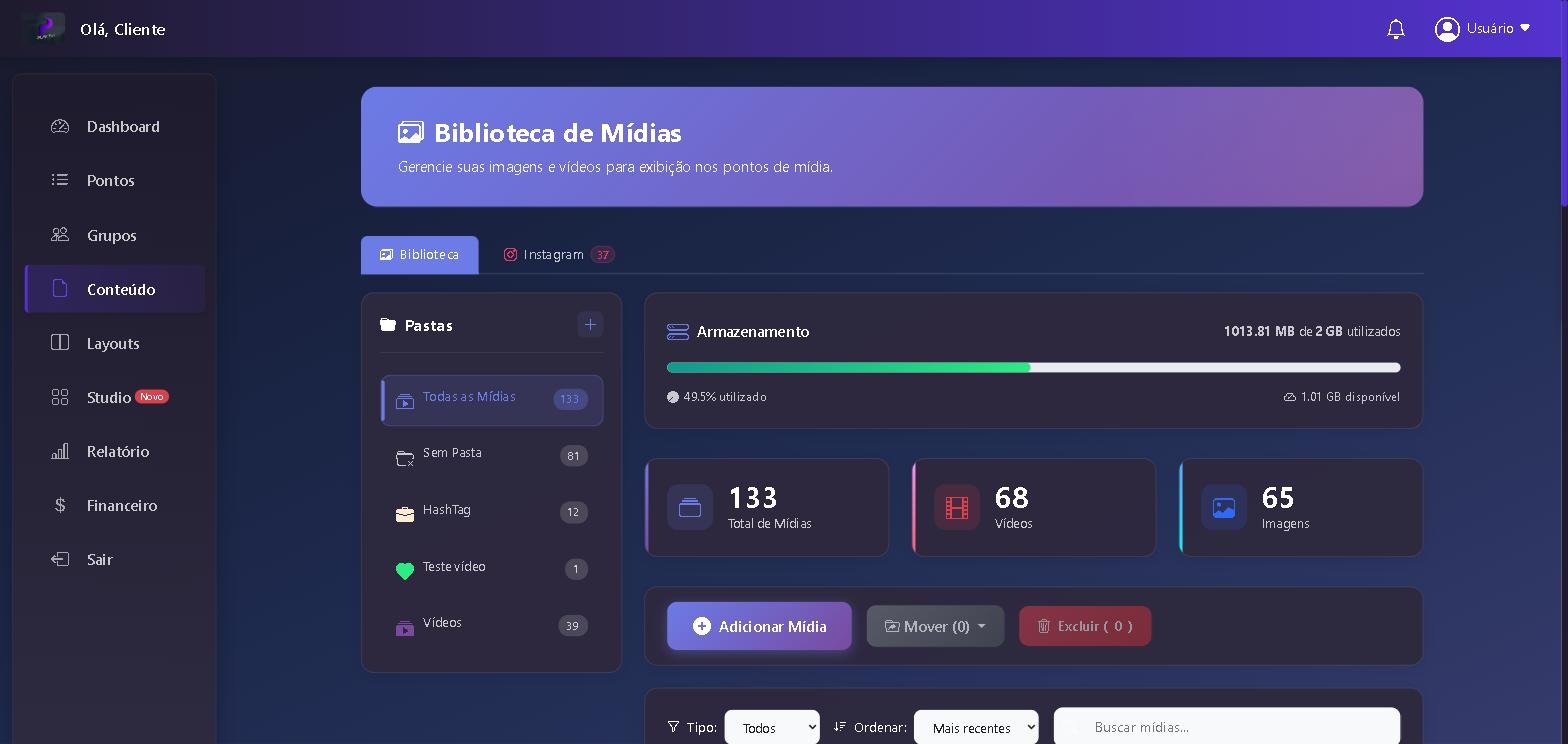
Everything that goes to your screens passes through the Content. Each file you upload once can be used on as many screens as you want.
-
Click Add Media
Drag the file to the indicated area or use Choose File.
-
Fill in the settings
- Media Name — this is the name you'll use to find the file in the schedule.
- Folder — organize by campaign, client or month. Without a folder, it goes to Root.
- Duration — how long the image stays on screen. For video, the file's actual length takes priority.
- Video Audio — With Sound or Muted. In places with their own music, leave it muted.
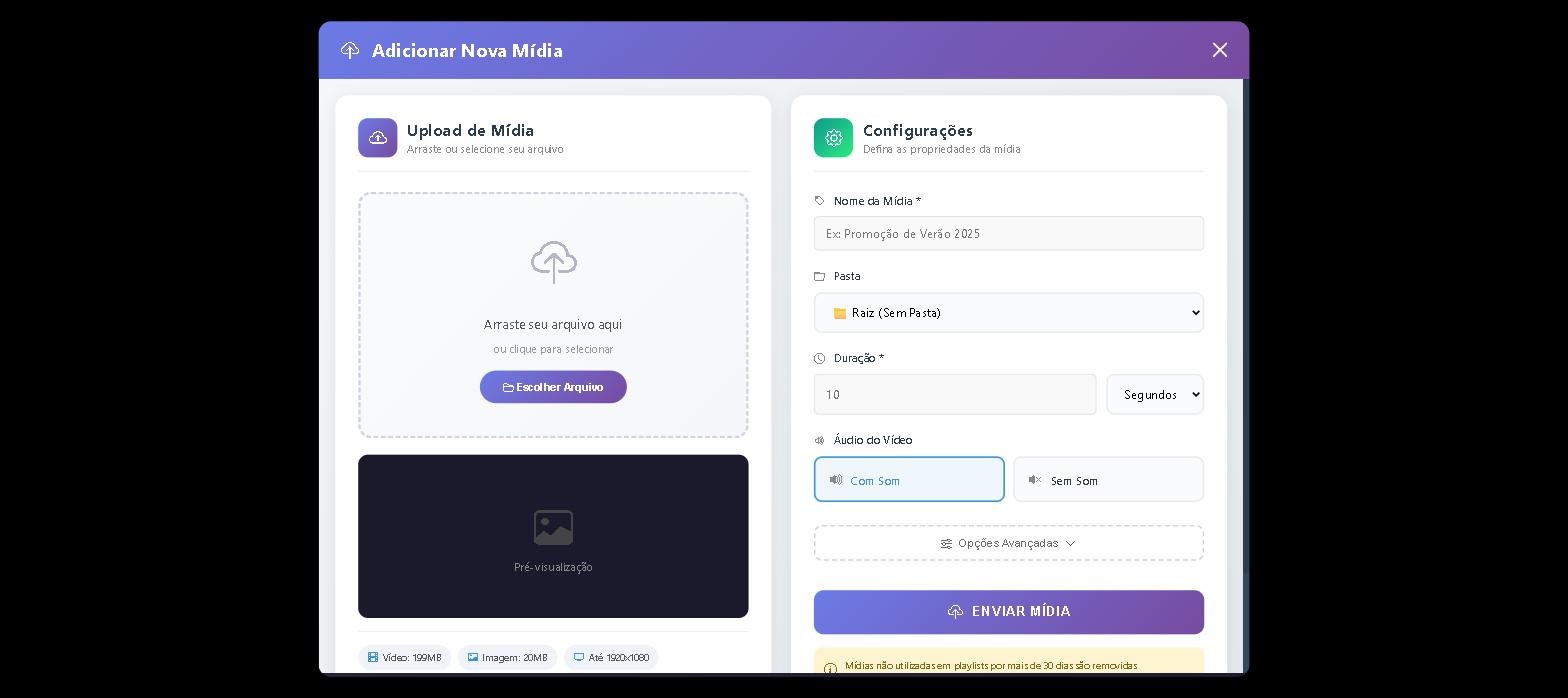
The limits appear at the bottom of the window: video up to 199 MB, image up to 20 MB, resolution up to 1920×1080. -
Upload and keep an eye on storage
The Storage bar shows how much of your plan you've used. If you go over, delete what you no longer use or add extra space.
Accepted formats and sizes
| Type | Limit | Recommendation |
|---|---|---|
| Video | up to 199 MB | MP4 (H.264). For horizontal screens, 1280×720 already looks great — smaller files download faster on slow internet. |
| Image | up to 20 MB | JPG or PNG at the screen's exact resolution (1280×720 or 720×1280) so nothing gets cropped. |
| Resolution | up to 1920×1080 | Anything above that is blocked on upload. Wide video wall videos have their own path. |
Media that stays more than 30 days without being in any playlist is removed automatically. If a file is seasonal and you want to keep it, leave it scheduled on some screen or keep your own copy.
Automatic content: news, weather and lotteries
Besides your own files, the library includes categories that update on their own — News, Lotteries, weather and other widgets. You just add them to the schedule; the content arrives up to date without you doing anything.
Schedule the screen
This is where you define what the TV shows. In Screens, click Schedule on the screen's card.
-
Choose the content
On the left are the Available Media, separated by category (your media, News, Lotteries, Instagram). Click a category to open it and click an item to send it to the playlist. There's search by name and filter by folder.
-
Order the playlist
On the right is the Current Playlist, with the Total Duration of the cycle. Drag items to change the order. SHUFFLE randomizes the order; CLEAR empties the list.
-
Schedule what needs a time slot
Each item has a calendar icon: use it to set the day, date and time range when that content can appear. Outside the window, the item is skipped and the rest keeps playing.
-
Save
Click SAVE. The screen gets the change within seconds if it's online, or on its next contact with the server.
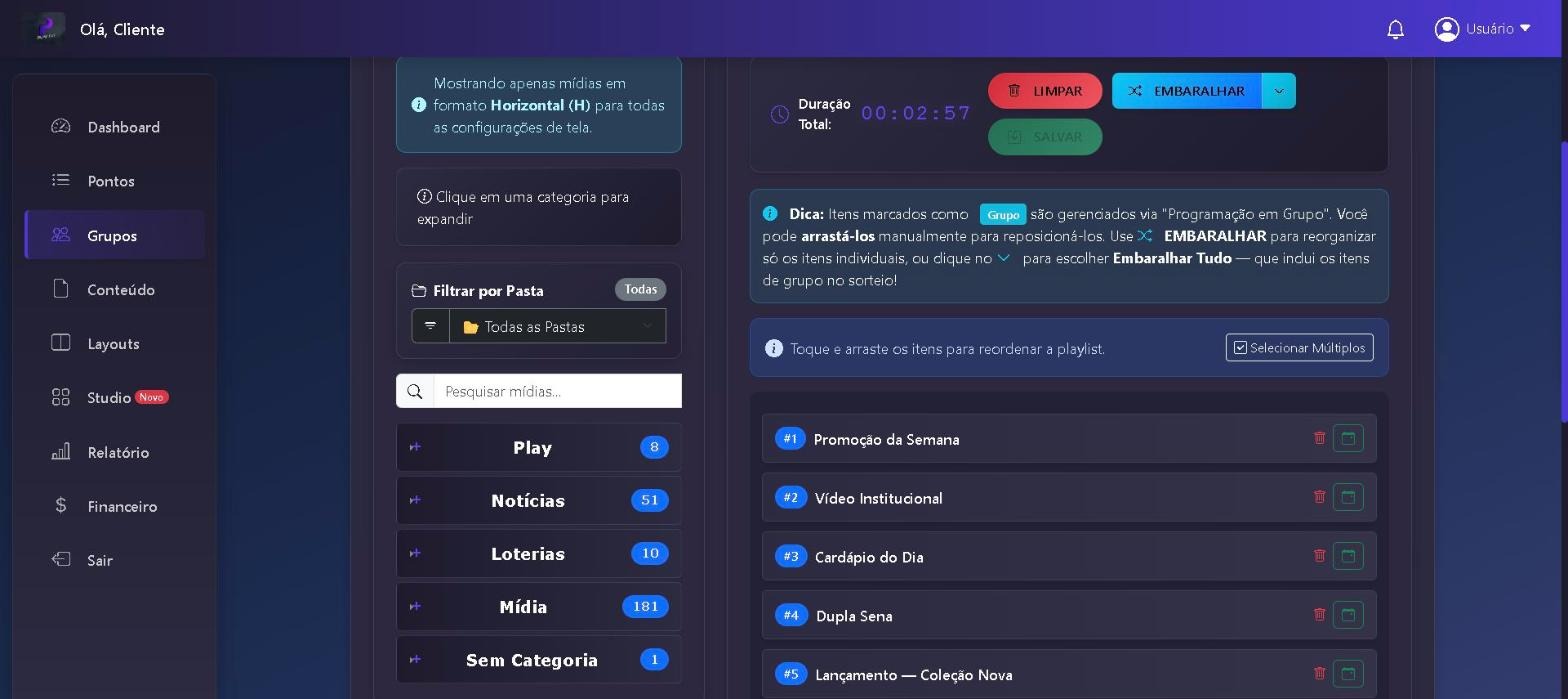
Rule of thumb for duration: in a storefront, where people walk by quickly, 8 to 10 seconds per image. In a waiting room, 15 to 20 seconds, because there's time to read.
If you schedule all the items in a narrow time range, outside it the lineup is empty and the screen has nothing to show. Leave at least one item unscheduled to cover the rest of the day.
Layouts: split the screen into zones
A layout is a split screen: a large video on one side, news scrolling along the bottom, a logo in the corner, a clock. Each piece is a zone with its own content, and all of them appear at the same time.
-
In Layouts, click New layout
Start blank (horizontal or vertical) or from one of the 12 ready-made templates — full screen, main + footer, main + sidebar + footer, columns, quadrants and vertical versions for kiosks. The editor opens with the zones in place. Give it a name and check the RESOLUTION: 1280×720 for horizontal screens, 720×1280 for vertical — it must match the location's format.
-
Add zones
Each click on ZONE creates a rectangle that you position and resize using the handles. AUTO adjusts the zones to eliminate empty gaps.
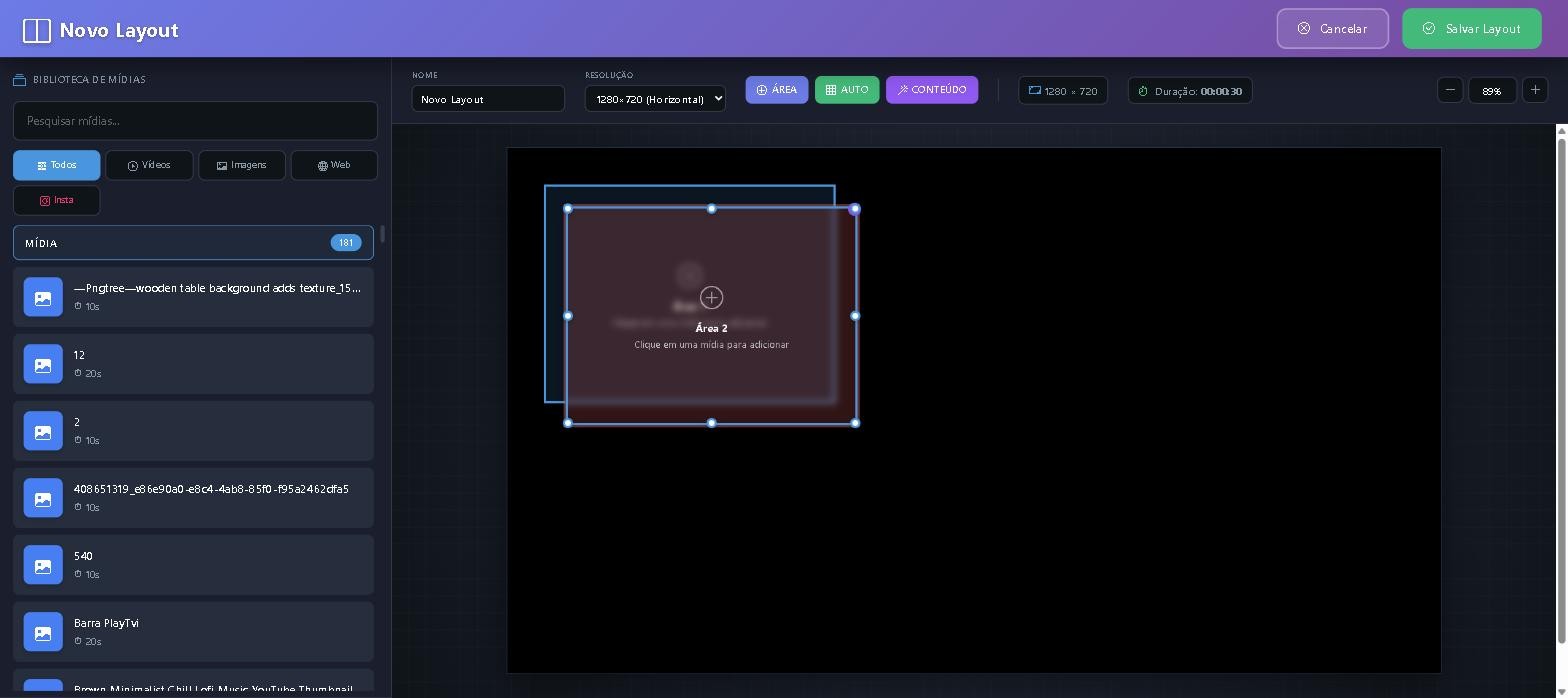
With a zone selected, click a media item in the list on the left to fill it. -
Fill each zone
Select the zone and click the content you want — video, image, news or web page. A zone can hold several items and rotate between them.
-
Check the duration and save
The top shows the Duration of the layout. Use the Preview in the layout list to see the result before scheduling.
The layout's duration must fit the longest content inside it. If the layout lasts 30 seconds and a zone has a 50-second video, the video will be cut off when the layout restarts.
In the layout list you also have Edit, Duplicate (to create variations without starting over), Preview e Delete, plus the filters Recent e Most Used.
Video wall: several screens as one
A video wall combines 2 to 6 synced screens . In Layouts, use Create Video Wall.
-
Choose the wall's screens
All of them must have the same orientation. Screens that already belong to another sync group appear locked.
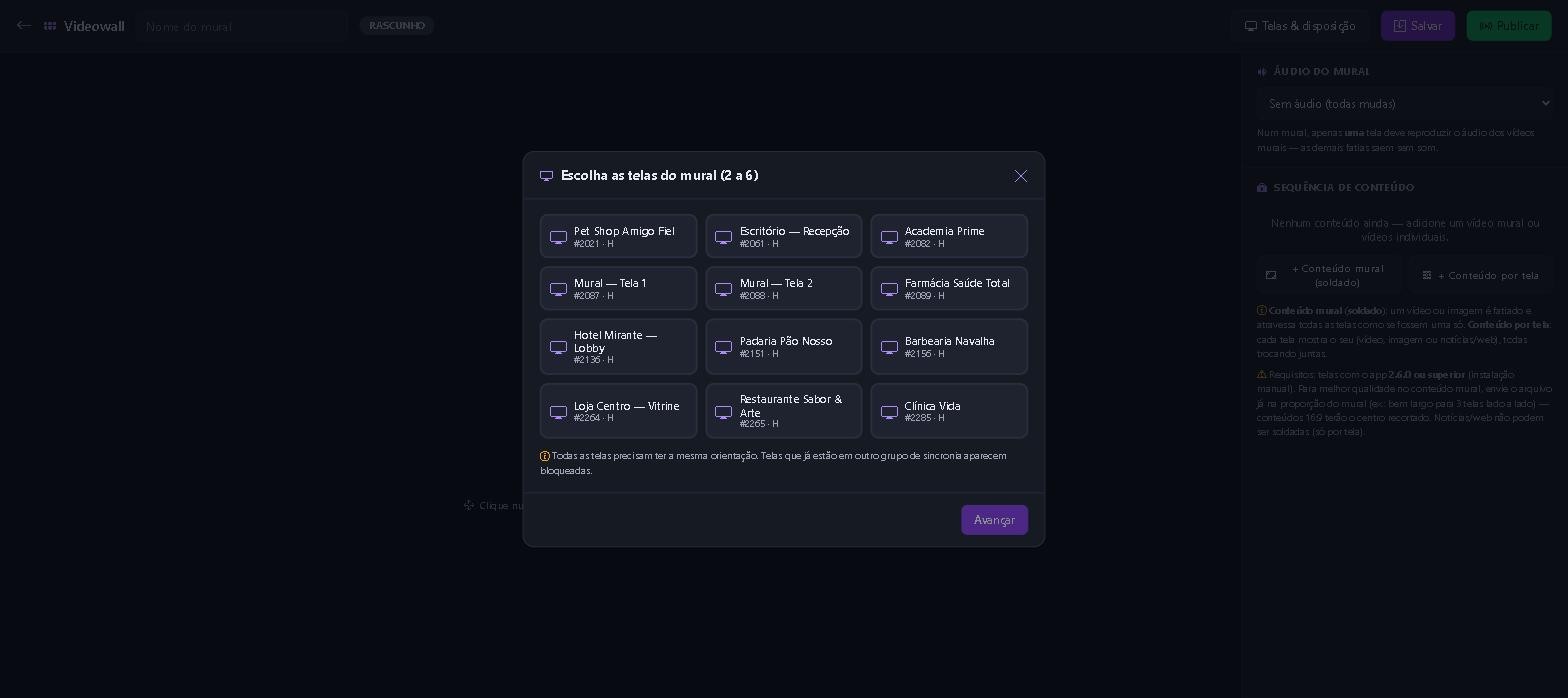
On the right, the panel explains the difference between wall content and per-screen content. -
Set the arrangement
Tell the system how the screens are physically mounted (side by side, in a grid). This tells it which slice of the image goes to each TV.
-
Choose the content type
- Wall content (stitched) — a video or image is sliced and spans all the screens as if they were one.
- Per-screen content — each screen shows its own content, but they all change together.
-
Adjust the audio and publish
On a wall, only one screen should play audio — the others stay muted. Save as a draft and click Publish when you're ready.
Requirements: the screens must be running app version 2.6.0 or higher. For best quality with stitched content, upload the file already in the wall's aspect ratio (very wide, for 3 screens side by side) — 16:9 content will have the center cropped. News and web pages can't be stitched: they only work per screen.
Studio: create designs without leaving the dashboard
O Studio is a visual editor for people who don't have a designer on hand. You start from a ready-made template or a blank canvas, and the finished design goes straight to your library.
-
Start with a template
In the Templates tab there are dozens of templates organized by industry: Promotions, Retail/Supermarket, Restaurants/Food, Beauty/Barbershop, Gym/Fitness, Pet Shop, Automotive, Fashion, Real Estate, Health/Pharmacy and Services/Corporate.
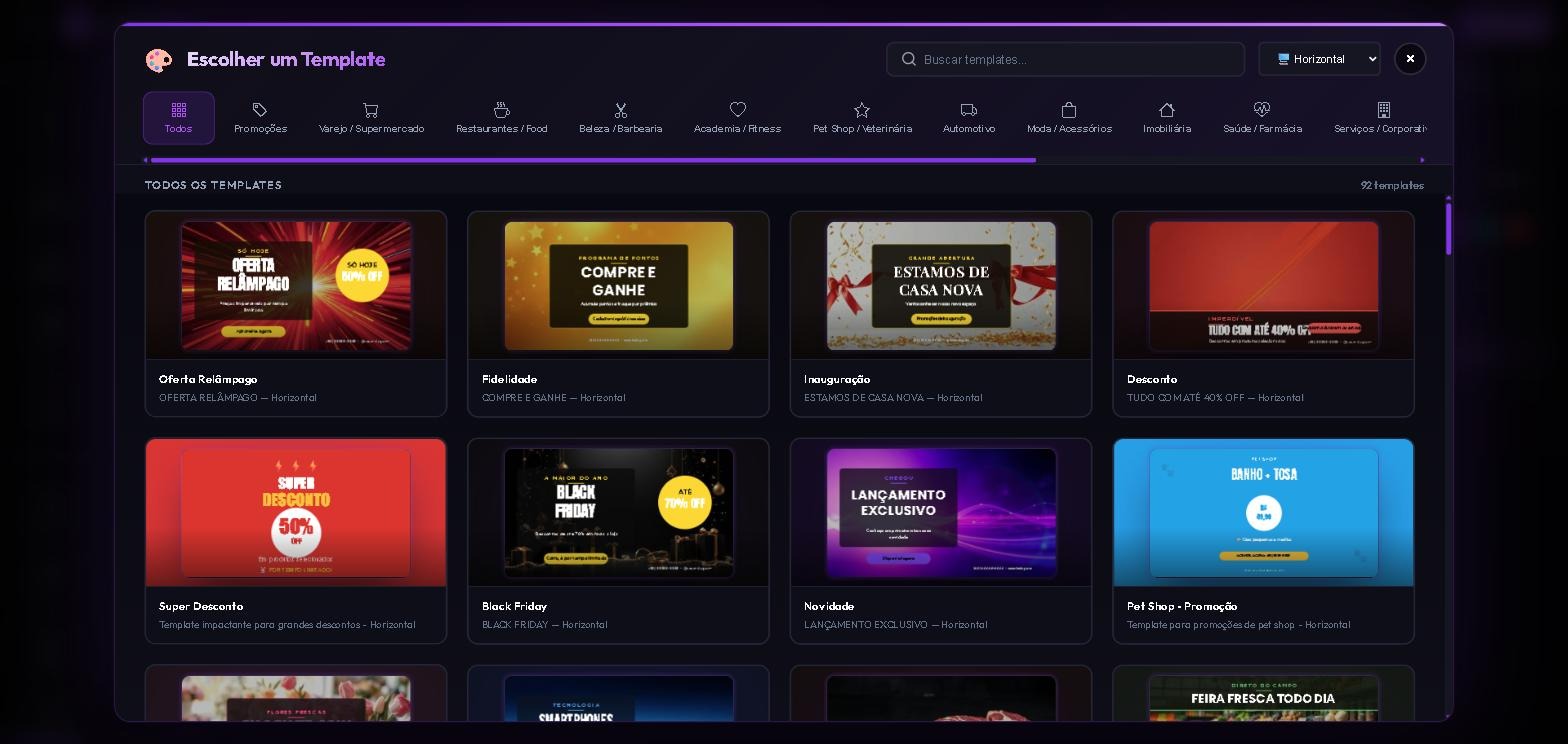
Choose the template, change the text, prices and images. The structure is already done. -
Build with elements
On the left are Text, Title, Rectangle, Circle, Triangle, Line, Table, Price, Arrow e and Badge. On the right, the tabs Props (color, size, alignment), Layers (what sits in front) and Elements.
-
Use widgets that update themselves
Under Dynamic Widgets: Clock, Date, Weather, QR Code, Ticker (scrolling text), Countdown e YouTube. A design with a clock and weather never goes stale.
-
Check resolution and time, then save
At the top you set the resolution (1280×720 for horizontal) and for how many seconds the design stays on screen. Save sends the design to the library, ready to go into the schedule.
A screen is read from a distance and in passing. One message per design, large text, and the price as the biggest element when it's a promo piece.
Groups: schedule several screens at once
With many screens, repeating the same playlist one by one doesn't scale. In Groups you build the playlist once and, when you save, it goes to all the screens in the group at the same time — ideal for store chains, branches, franchises and kiosks.
-
Create the group
Click Create New Group, give it a name that describes the set ("Health Pharmacies," "Reception Areas") and check the screens that belong to it. The selected screens appear below so you can verify them; then, Create Group.
-
Build the group's playlist
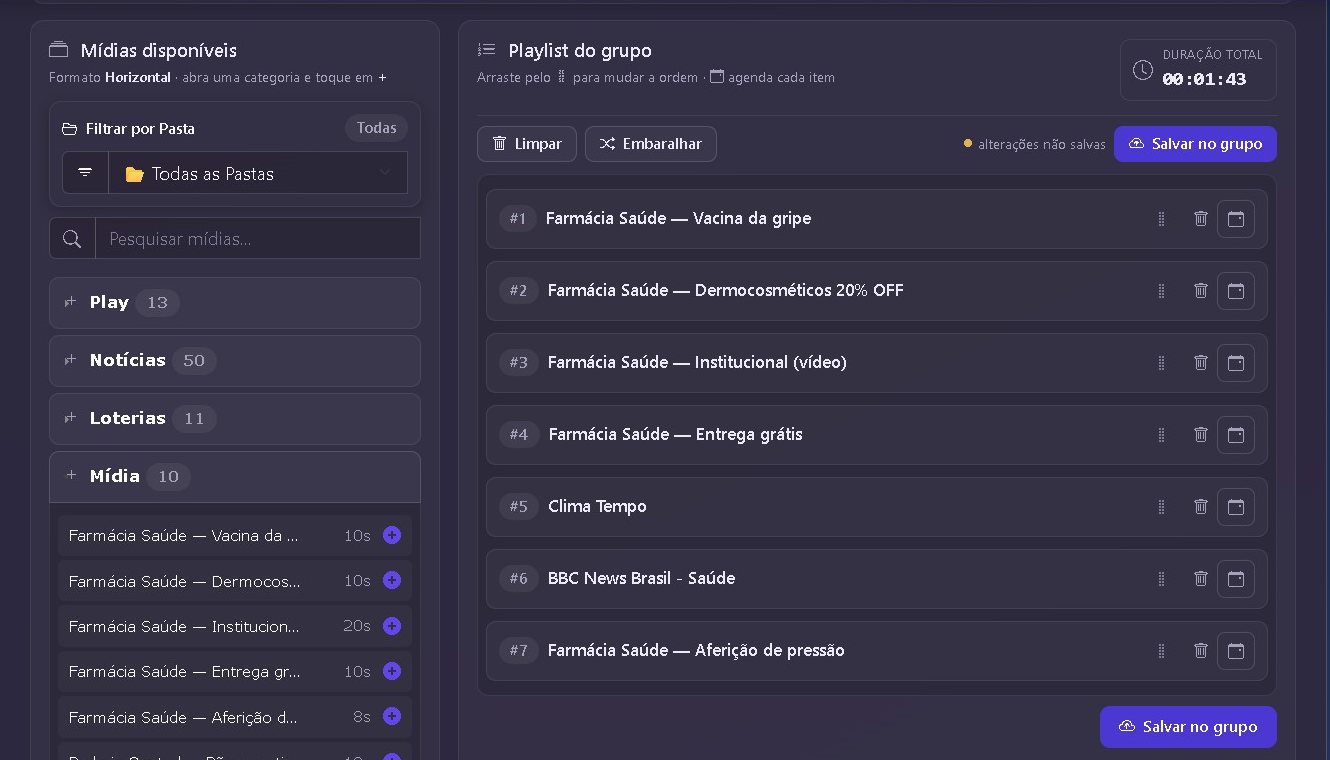
On the group's card, click Build playlist (or Open playlist). On the left are the media by category — only those that match the group's format —, with a folder filter and search. Click the + to add and drag items to change the order. The total duration shows how long one full loop takes.
-
Schedule what you need (optional)
In each item's calendar, choose the period, time and days of the week. With Priority on, the item only appears at the scheduled time.
-
Save to the group
Save to group sends the playlist to all screens at once: screens that are on receive it right away and those that are off get it as soon as they connect. Group items are added to each screen's own schedule.
Smart Tags: schedule dozens of screens with one label
A tag is a label you stick on media — Gyms, Drinks, Christmas. With it the system does two things on its own: spaces out media with the same tag in the lineup (two never play back to back) and delivers the tag to the right screens, without you opening each one's schedule. It's under Tags, in the dashboard's side menu.
-
Create the tag
Under Tags, click New tag. Enter the name of the category (not the media), an optional description and a color. Under Distance, leave Automatic — the system calculates the best spacing for each screen's lineup size — or choose Fixed and say how many media items play in between. Time and days of the week are optional. Click Save tag.
-
Put the tag on media — 4 ways
One media item: in Content, click the tag icon on the media card and choose the tag.
Several at once: check the boxes on the media, open the button Tags in the top bar and choose the tag.
When uploading: in Add Media, click the tag in the field Tags before uploading.
When editing: in Edit, check the tag and save. -
Schedule on screens
On the tag's card, open the menu ⋮ and click Schedule on screens. Choose where: one screen, a group or all screens with a label; and the mode Include. If you want, schedule days and times. Click Save and apply: from then on, every new media item with the tag goes onto those screens on its own — and comes off when it loses the tag. Another way is the tab Screen tags: click the screen × tag cell and it starts receiving right away.
-
Check in the simulator
Open the Simulator, choose a screen and compare the lineup before and after. If it looks good, click Apply to this screen. It only changes the order — no file is downloaded again by the TV.
Categories that don't mix? Under Rules between tags let you keep two different tags apart in the lineup — for example, the pharmacy ad away from the beer one — or block one from being added automatically to a screen that already has the other.
Monitor and diagnose your screens
Under Screens, each card already gives you the essentials: code, status ONLINE/OFFLINE, the WS badge (real-time connection), how many items are scheduled, last access, city, device model, Android version, app version and free space.
What each card button does
| Button | What it does |
|---|---|
| Schedule | Opens that screen's playlist. |
| PlayView | Shows what's playing on that screen, without you going to the site. |
| Edit | Name, address and screen format. |
| Brightness | Adjusts brightness (and volume, when the device allows it) remotely. |
| ⓘ | Opens the full diagnostics. |
The full diagnostics
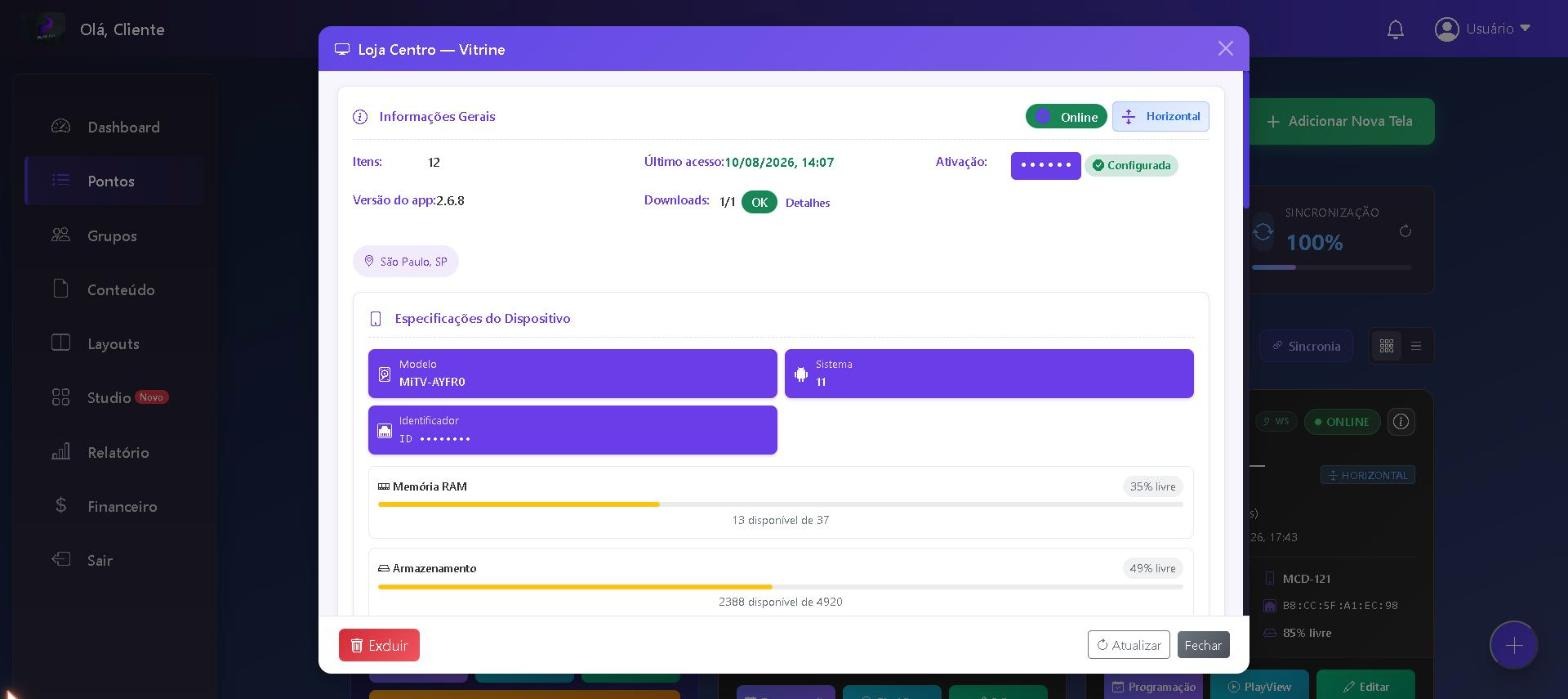
The ⓘ button opens the screen's file: scheduled items, last access, activation code, download status, app version, location, model, system, device identifier and the usage of RAM e and storage.
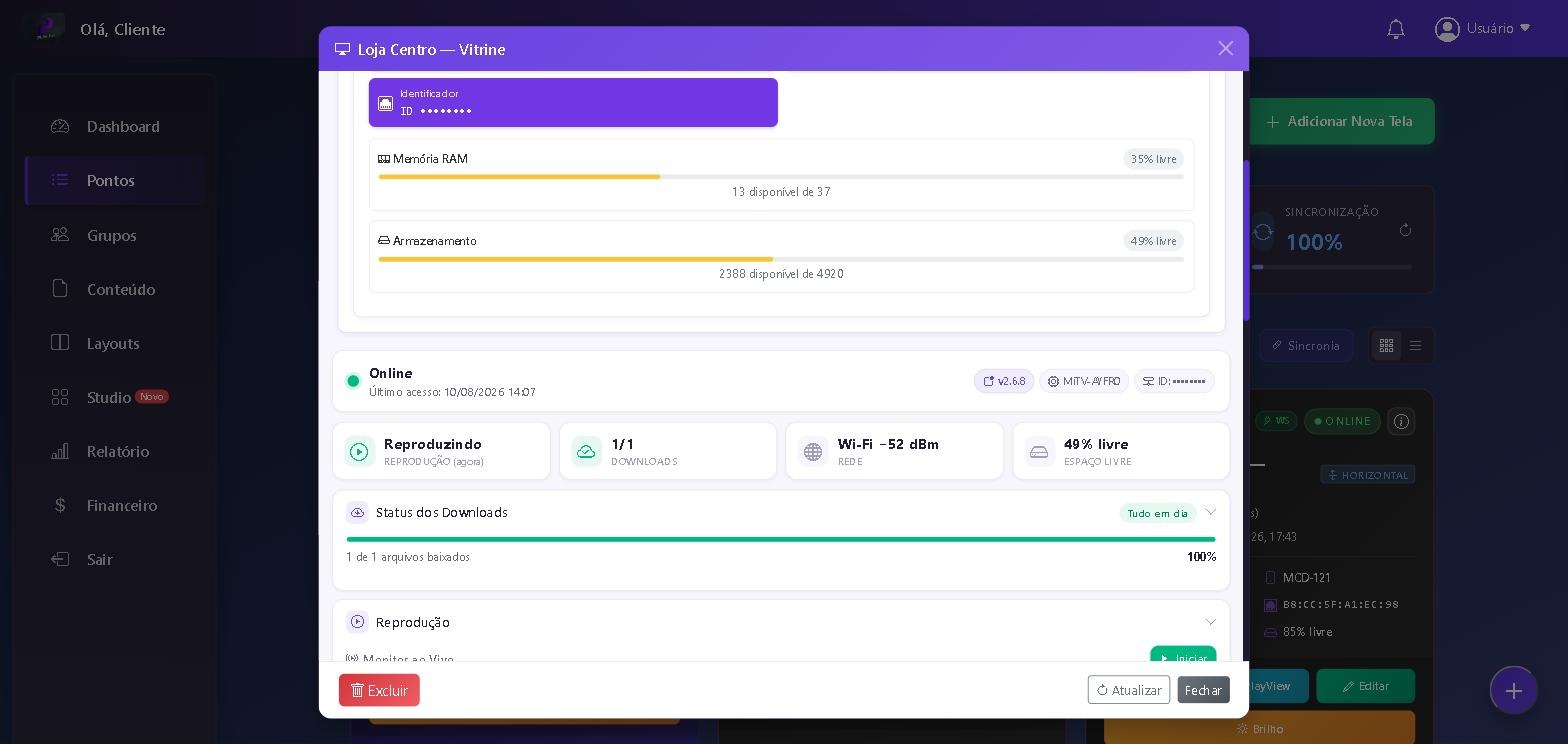
Further down, the same panel shows real-time health: whether it's Playing, the total of downloads completed, the quality of the network, o and free space e o Download Status item by item — this is where you find out whether any file didn't arrive.
Reports: prove what was displayed
O Report answers two different questions, each in its own tab.
Media Statistics — how many times it played
-
Choose the media
The Media filter accepts several at once — useful for adding up an entire campaign.
-
Filter by screen and period
Location limits it to one screen; Start Date e End Date set the window. Click Analyze.
-
Read the numbers
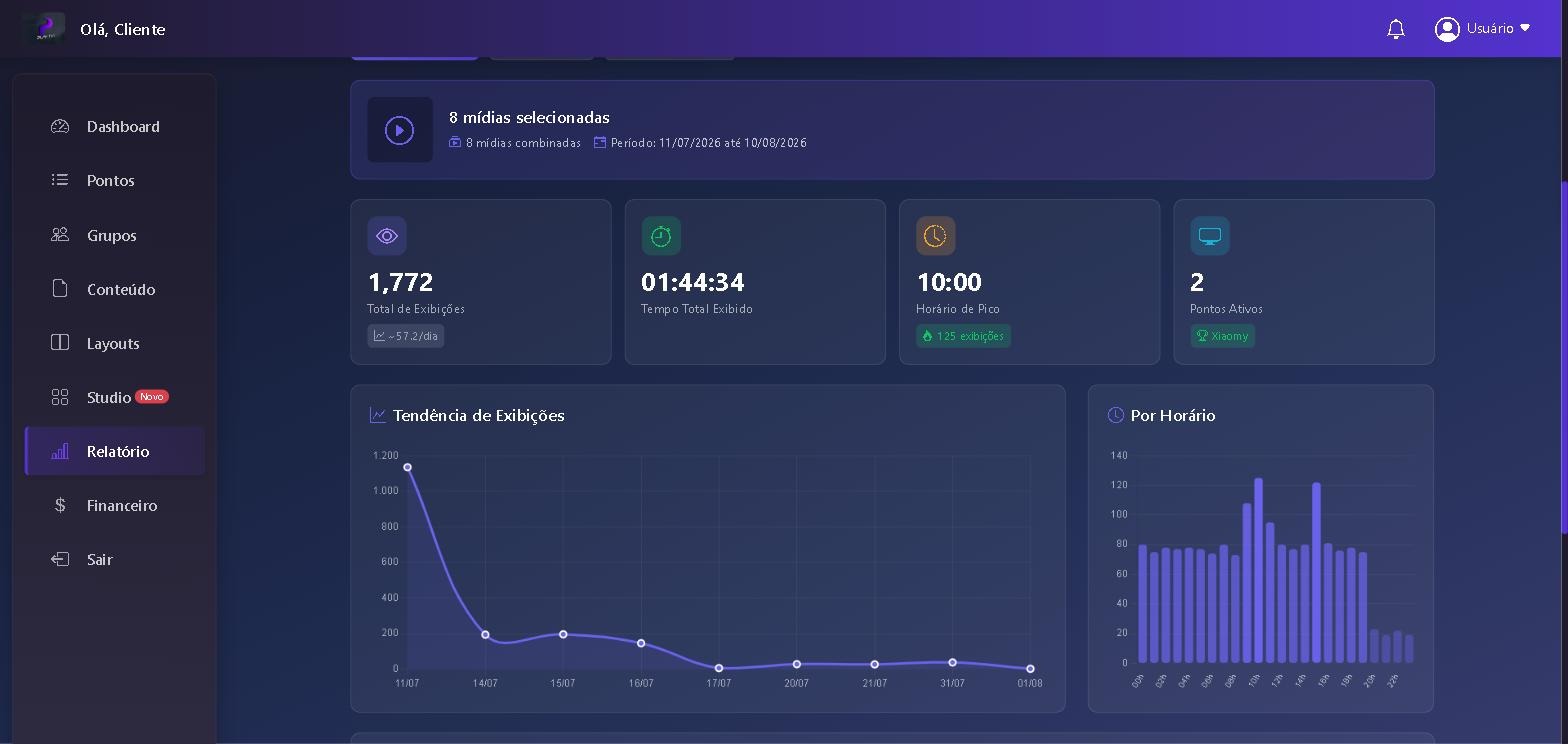
You get Total Plays, Total Display Time, Peak Hour e Active Locations, plus the daily trend charts and the hourly distribution.
-
Export
Export PDF to send to the advertiser, Export CSV to open in Excel.
Screen Availability — how long it stayed up
The second tab answers "did my screen work?" The table shows, for each screen: current status, days online, time online, days offline, o availability percentage e a last time online.
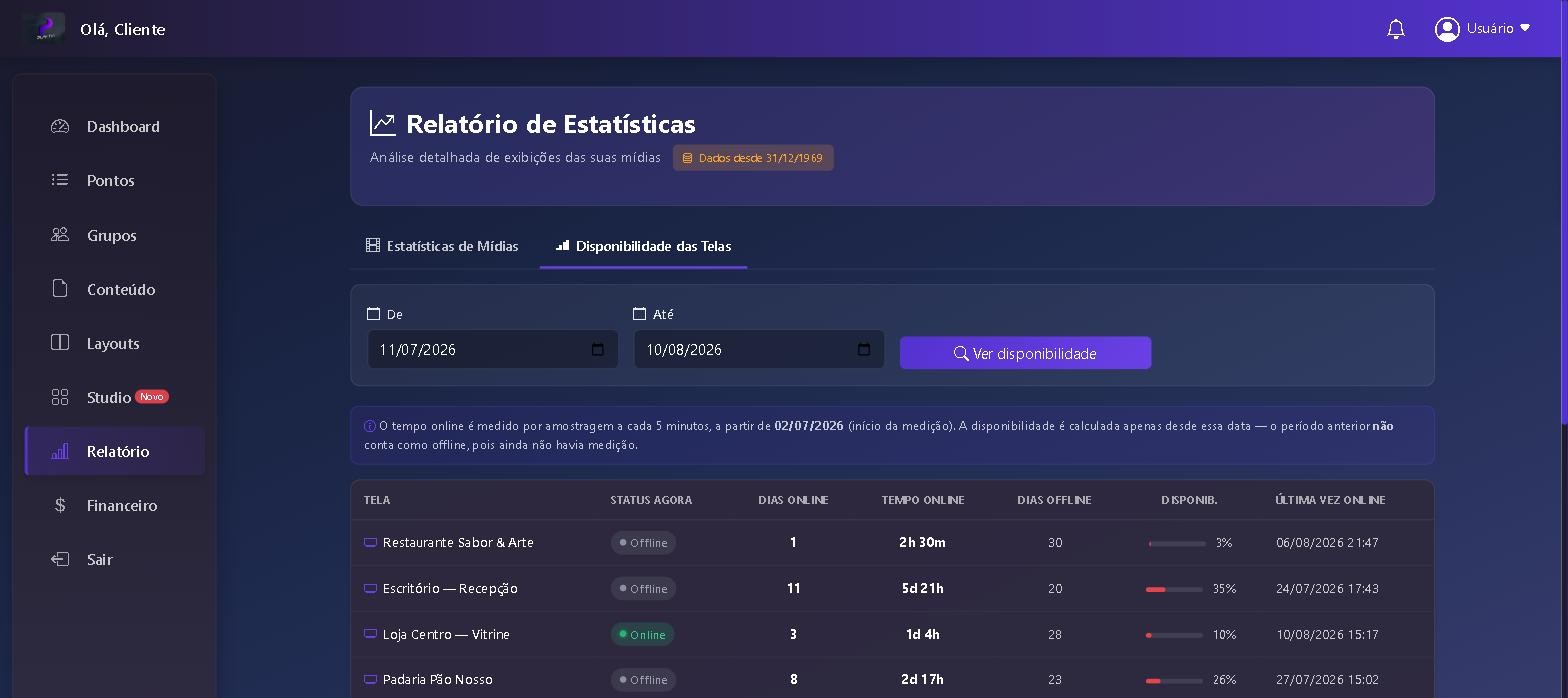
The period before measurement started does not count as offline — there simply was no data collection. That's why newly paired screens may show low availability in the first few days.
Sub-users: give access without handing over the account
Under Administrator Management you create additional logins and choose which screens each one can access — the branch manager only touches their own screen.
-
Add New Administrator
Set the login, email and password.
-
Choose the permissions
Click the administrator's login to edit. You define the locations they can see; the list shows the count in the column Screens.
Under Screens there is the filter All sub-users, which separates "my screens" from each sub-user's screens. It helps when the operation is split among several people.
A sub-user doesn't see Billing. Billing and payment method stay with the main account only.
White label: dashboard, app and domain with your own look
Under System Settings there are three tabs. They mainly matter to those who resell digital signage to their own customers.
Visual Identity
Upload the dashboard logo (recommended size 282×66px) and set the footer text. The change appears throughout the system and in the apps.
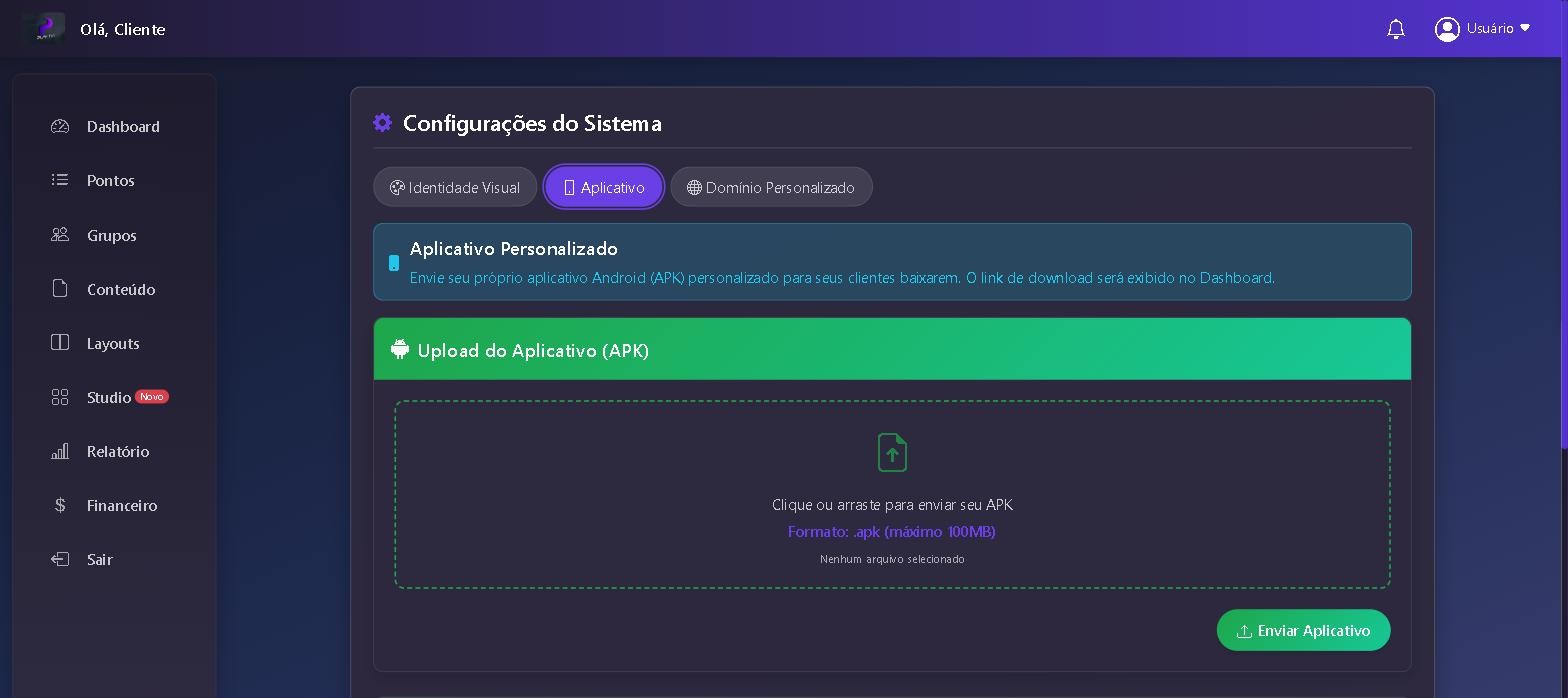
App
You can upload your own APK (.apk format, up to 100 MB) for your customers to download — the link appears on the Dashboard.
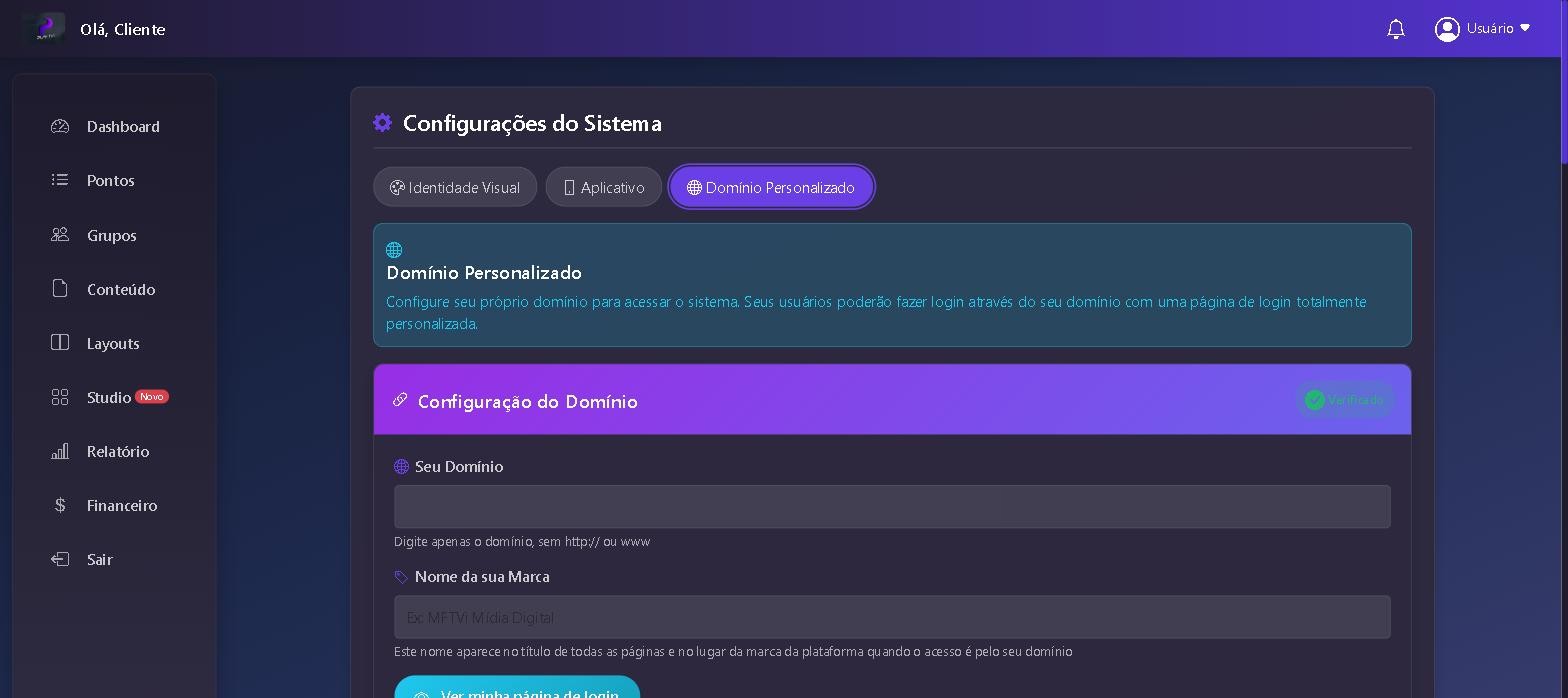
Custom Domain
Set up your domain so your customers can access the system through it, with a login page under your brand. Enter only the domain (without http:// nor www) e o name of your brand, which replaces "PlayTVi" in page titles.
Billing: plan, charges and history
O Billing opens with the summary: monthly amount, current plan, active screens,, billed screens, price per screen, status, billing cycle and next due date.
Active screens vs. billed screens: trial screens aren't counted. That's why the two numbers can differ.
Payment methods
| Method | How it works |
|---|---|
| QR code payment | Generates a QR code for instant payment. |
| Invoice by email | Sent automatically by email every month, to the address you register. |
| Credit card | Automatic charge every month, so you don't have to remember. |
The plans
| Plan | Price | Includes |
|---|---|---|
| Standard | $7.90/screen/month | 500 MB of storage, automatic RSS news, weather forecast, lotteries and email support. |
| Business | Custom — talk to our team | 2 GB of storage, custom news, playback reports and full support. |
| Ultimate | Custom quote | Android app with your brand, on-demand storage, full reports and dedicated support. |
Need more storage? Just let us know. The Payment History, at the bottom of the page, lists the date, amount, status and method of each charge.
If the monthly fee stays unpaid past the deadline, screens show a block notice instead of your content. As soon as payment is confirmed, they come back on their own — no need to reinstall anything.
Troubleshooting
Always start with the screen's card in Screens and the diagnostics in the ⓘ: 90% of cases are explained there.
| Symptom | Where to look / what to do |
|---|---|
| Screen shows OFFLINE | Check "Offline for X days" on the card. Check the device's power and the site's internet. If the Wi-Fi password changed, the device must be reconnected to the network. |
| New content doesn't show up | Open the ⓘ and see Download Status. If it's stalled, it's almost always low free space — delete old media from that screen's schedule. |
| Black or frozen screen | Unplug the device, wait 10 seconds and plug it back in. If it happens often on the same device, it's probably an old box with no spare memory — worth replacing. |
| Nothing plays at certain times | Probably a schedule covering only part of the day. Leave at least one item with no time restriction. |
| Video with no sound (or unwanted sound) | Audio is set per media item, in Video Audio. Edit the media and change it. On a video wall, only one screen plays the audio. |
| Image cropped at the edges | File has a different aspect ratio than the screen. Upload at the exact resolution (1280×720 or 720×1280) or use a layout with a zone of the right size. |
| I can't upload the media | Check the limits: video 199 MB, image 20 MB, up to 1920×1080. Phone photos may come in an unsupported format — export as JPG. |
| Storage full | Delete what you don't use in Content or add extra GB in Billing. |
| Video wall out of sync | All screens need app 2.6.0 or higher and the same orientation. Check the version on each screen's card. |
Store screens show offline at night and come back in the morning? That's expected: the TV was turned off at closing time. The app goes into standby and wakes up with it.
If none of that solved it, contact us through WhatsApp or by contato@playtvi.com.br — tell us the screen name and, if possible, what appears in the diagnostics.
FAQ
No. The Android device connected to the TV does all the work. You only use a computer (or phone) to access the dashboard when you want to change something.
No. Content is downloaded and saved on the device, so playback continues. Internet is needed to receive changes and so the dashboard knows the screen is alive — without it, the screen will show as offline in the dashboard while it keeps playing on site.
As many as you want. Billing is per active screen, and trial screens aren't charged. The dashboard shows both numbers on the Billing.
Yes, with the PlayView button on the screen's card. It shows what's on air at that moment, without you going to the site.
No. The Studio has dozens of ready-made templates by industry — you change the text, price and photo. If you'd rather use a design made by someone else, just upload it as an image to the library.
Yes — that's the idea. The dashboard is web-based: you access it from anywhere, change the schedule and the screens receive it over the internet. You can run screens in different states from the same account.
Use Groups: build the playlist once and save it to the group. Each screen can still have its own items in addition to the group's.
Yes. In Report you filter by media and period and export to PDF or CSV, with total plays, display time and hourly distribution.
It works. When you register the location, choose Vertical Right or Vertical Left depending on which way the TV was rotated, and build the content at 720×1280.
Media that goes more than 30 days without being in any playlist is removed to free up space. Content in use is never touched. Always keep a copy of your originals.
Have a question the guide doesn't cover? Send it through WhatsApp — your question may become a topic here.